User Management#
As a user, you can be in as many projects as you want. You can also create any number of projects as you need. This section covers all the necessary aspects of managing your roles and of other users assigned to your projects.
User’s Permissions Management#
In the top right corner, you can view the icon that leads to the details of your user account.
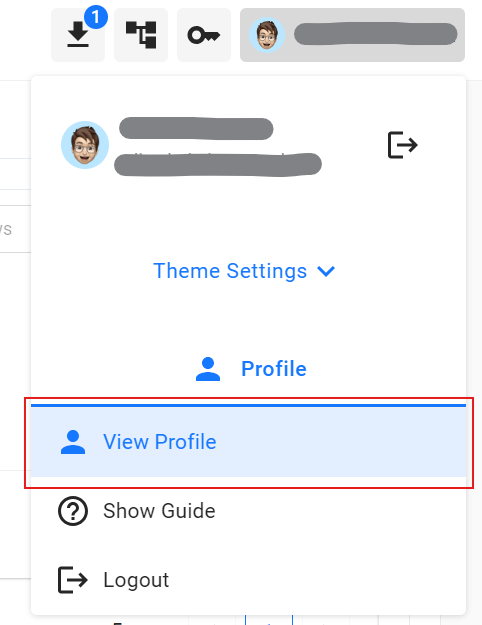
If you click on the View Profile, you will find your user name and e-mail registered to your account. But most importantly, you can find a table of roles for each of projects that concern you.
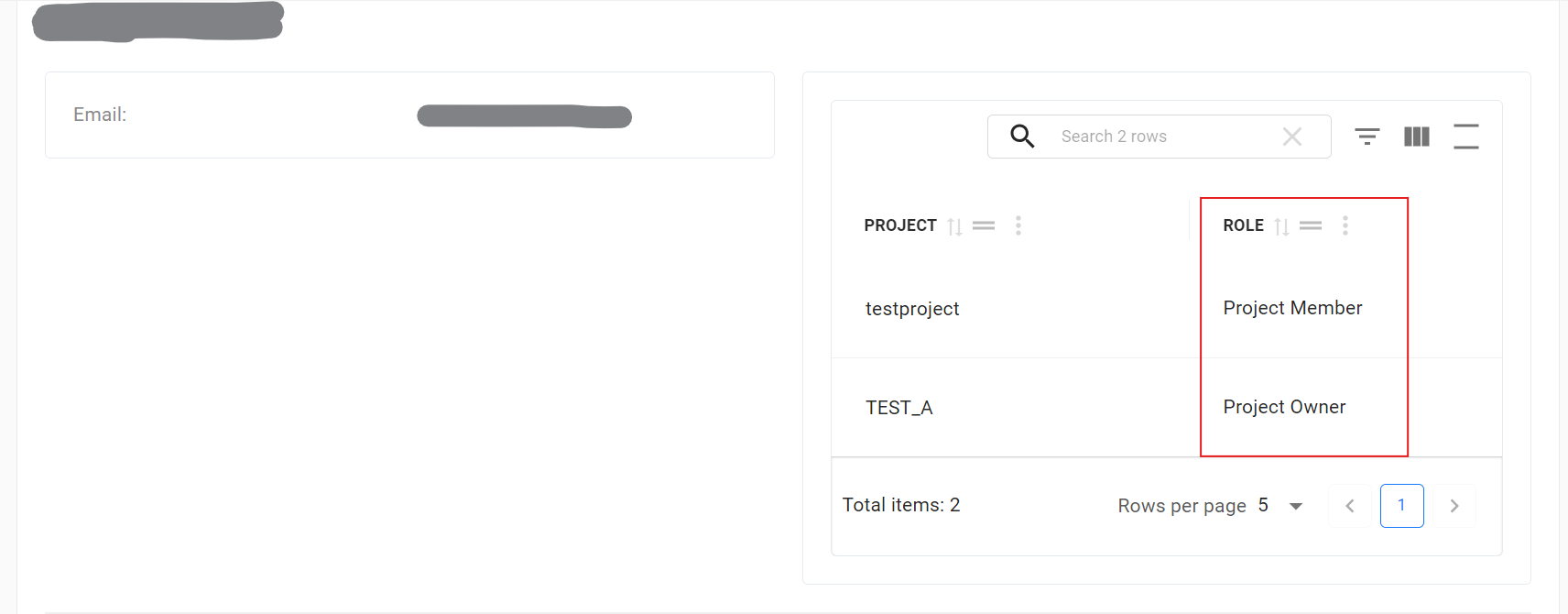
Within the LEXIS Platform Project, we define four user roles. The roles are:
Project Owner - This role is automatically assigned to the user who creates a new LEXIS Platform Project. There can be only one Owner per project. The user in this role has the highest level of permissions on the project and is responsible for approving new users and assigning them appropriate roles.
Project Manager - The Owner can assign this role to other users on the project to delegate project and user management to additional users. Multiple users can hold the Manager role within a project.
Project Member - This role is for standard users on the project. A user in this role can work with Workflows and Datasets but cannot publish any Datasets.
Project DataPublisher - A user in this role can work with Workflows and Datasets, and also has the permission to publish Datasets.
Managing members of LEXIS Platform projects as a project manager#
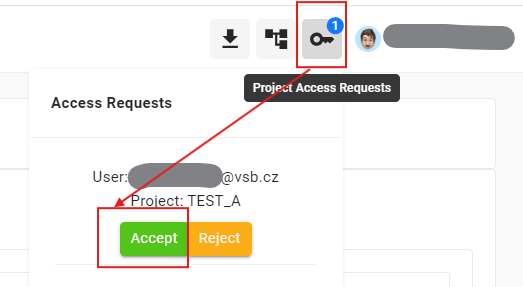
If someone is Requesting access to existing LEXIS Platform Project where you are in the role of a Project Owner or a Project Manager, a new request will appear next to your account name in the top right corner for your approval. And you will receive notification via e-mail, just to be sure. If you approve the request, the new user will automatically become the Project Member.
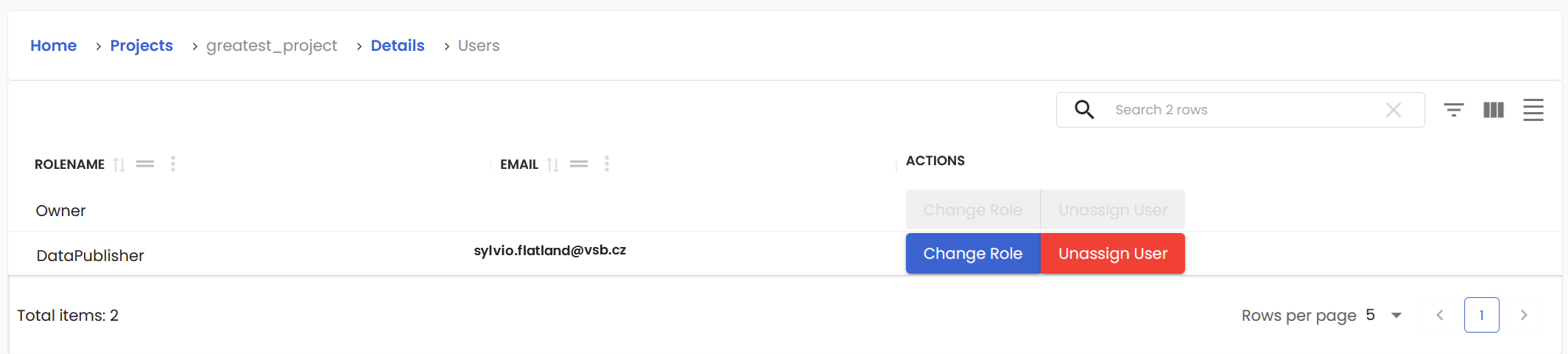
To manage the users in the projects, where you are Owner or Manager, navigate to the Projects section. There is the Users button specifically for this purpose.
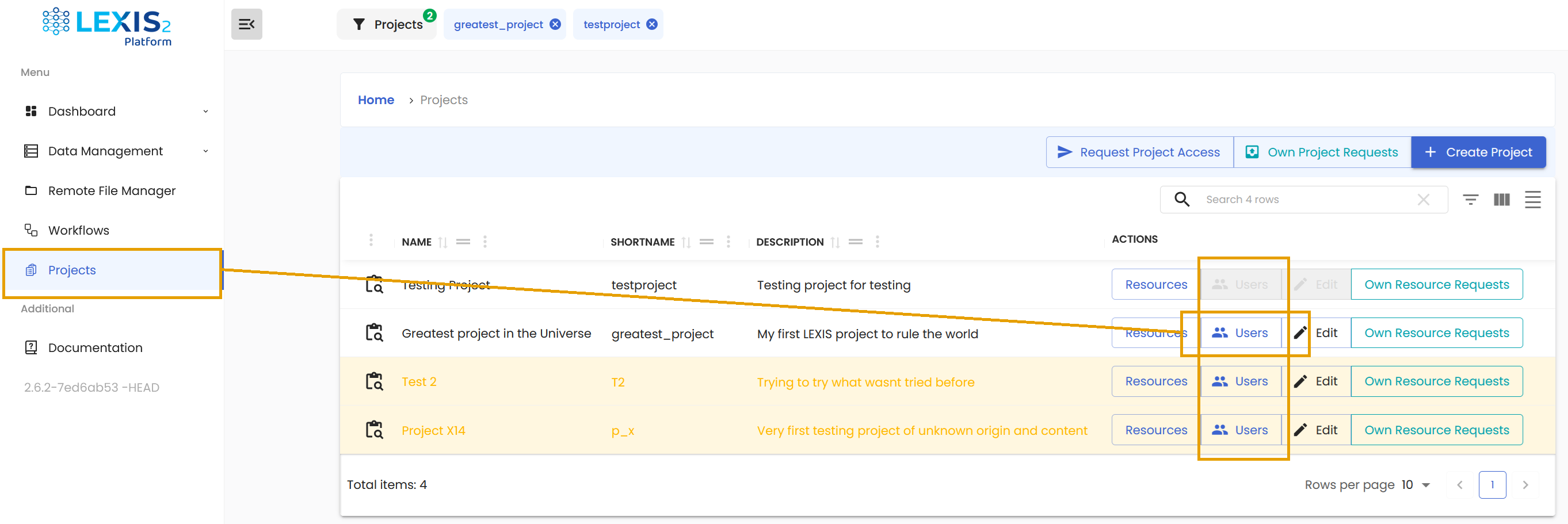
When you click it, you will see two important buttons. The first one, Change Role, allows you to change the role of any of your users. The second button, Unassign User, allows you to permanently remove the user from your project. In the future, that user must ask to join your project again.